
frename
let AI watch your footage before you edit it
Windows 10/11, 64-bit · also for Linux · free and open source
Source on GitHub · All downloads
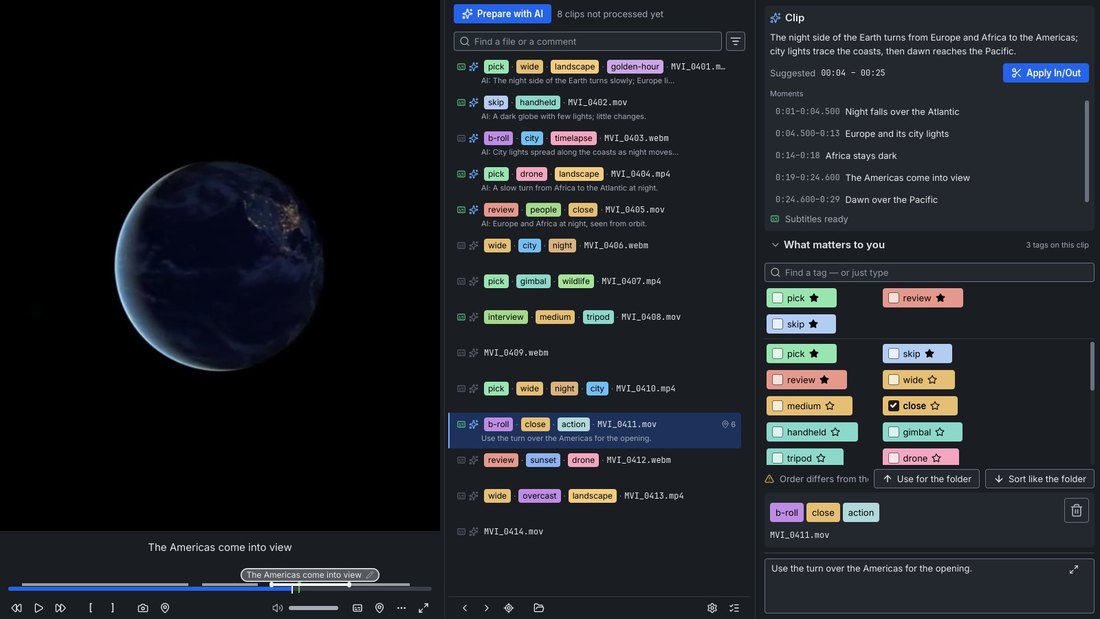
Let AI watch your footage before you edit it.
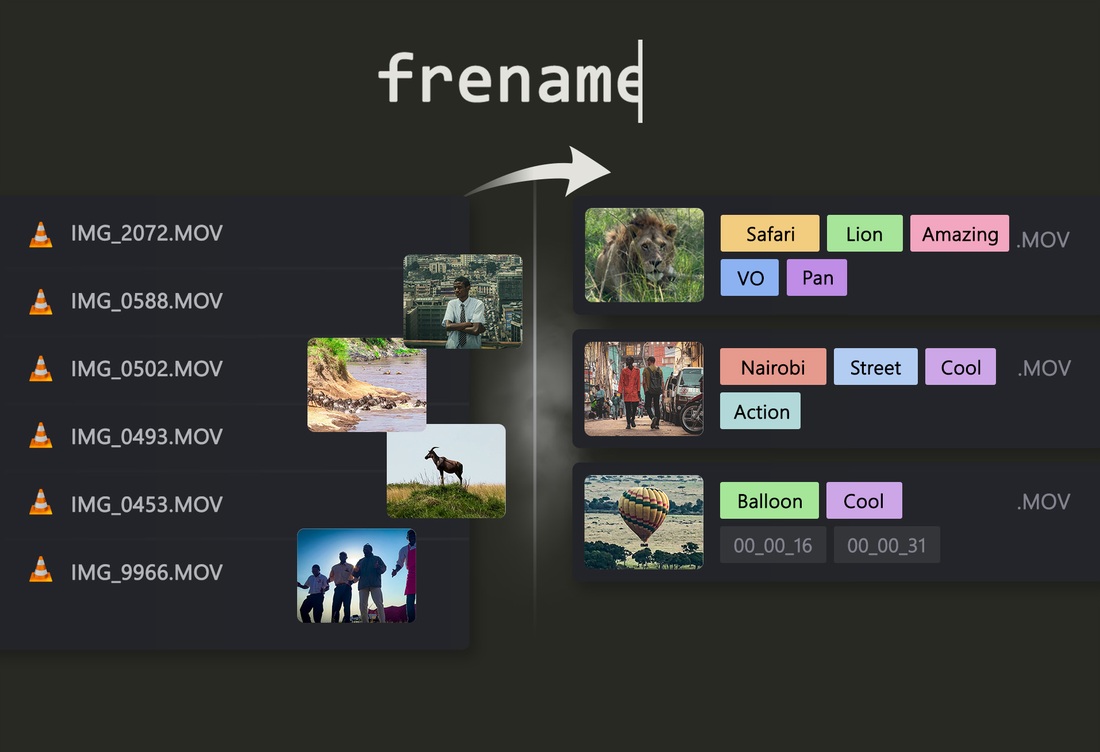
I came back from Africa with 2,000 clips named MVI_0001.MP4 to MVI_2000.MP4. Before the edit I had to know what was in each one. frename started as a way to watch a clip, tag it in seconds and move on. Now the AI does the watching first, and when Premiere Pro opens, every clip already has its subtitles and markers.
What the AI does
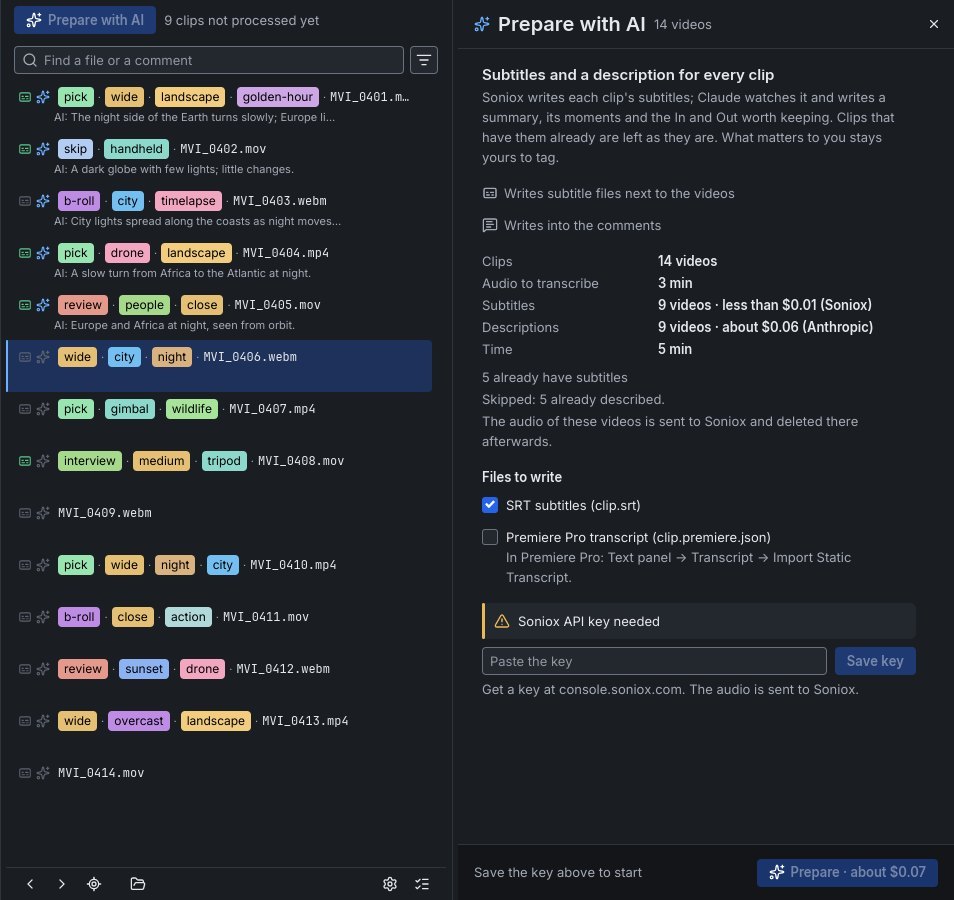
- Subtitles. Soniox turns the speech in every clip into an
.srt, a Premiere Pro transcript (Text panel → Transcript → Import), or both. About 10 cents per hour of audio. - Ranges and markers. Claude looks at up to 60 frames per clip, reads the subtitles if there are any, writes a one-line summary and marks what happens when, even with no speech. The moments become markers that Premiere Pro shows on the clip.
- A suggested In and Out. The AI picks the part worth keeping. Press Apply In/Out, and Premiere Pro turns it into a subclip.
- One button for the whole folder. Prepare with AI shows the price and the time first, then runs on every clip that isn't done yet. Descriptions with Haiku cost about $10 per 1,000 one-minute clips. Your own Anthropic and Soniox keys, kept in the system's password store.
The one thing you still do by hand
The AI can tell you there's a lion in the shot. It can't tell you it's the shot.
So tags stay manual, on purpose. They're the proof that someone actually watched the footage, and the only place to record what matters to you. Press a key or two, then PageDown, and the clip you leave is renamed: pick.night.city.MVI_0410.mp4. Tags live in the file name, so File Explorer, Premiere Pro and your backup tools all see them.
And the rest of the prep
- Your own markers: F2 at a moment, hold it for a range, name it, give it one of Premiere's colors. Ctrl+F2 asks the AI to name it.
- In and Out by hand with [ and ].
- A comment per clip, saved inside MP4 and MOV files, where Premiere Pro shows it in the Description column.
- Search by name, tag, the AI's description or your comment. Ctrl+Z undoes almost everything, and a recovery file survives a crash.
- Plays MP4, MOV, MKV, WebM, AVI and more with H.264, HEVC, VP9, AV1. Nothing else to install.
No account, no ads, no analytics. Your videos stay on your computer; only the AI actions send anything, and only when you run them. Every feature and every shortcut is in the guide.